
Setting up a Mac mini for the first time: what you need and the order to follow
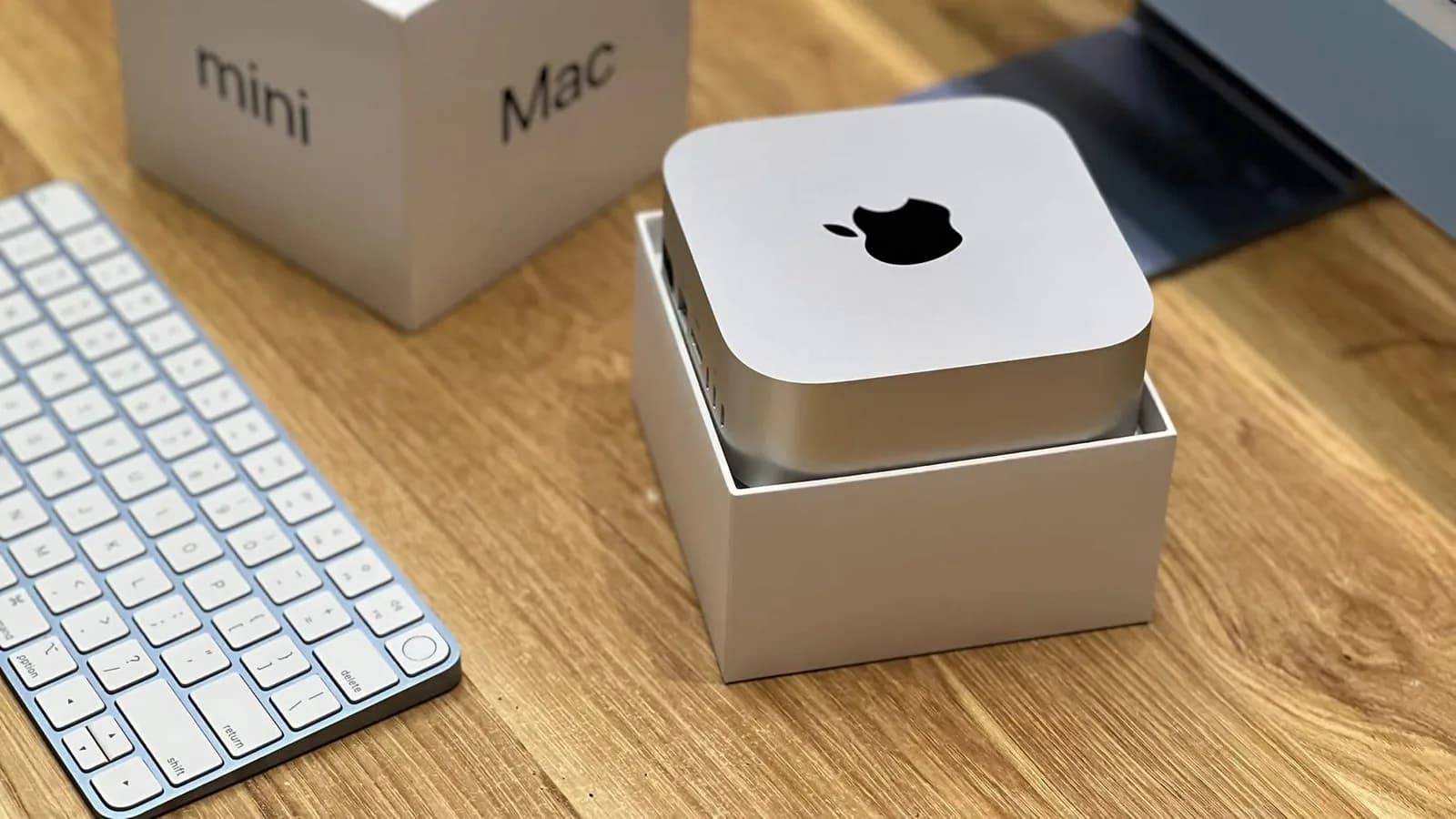
To set up a Mac mini for the first time you need a display, a keyboard and a mouse, because the box contains only the computer and a power cord. Plug in power, connect the display to a Thunderbolt or HDMI port on the back, connect the keyboard and mouse, press the power button, then follow Setup Assistant.
 By Mac MinimalPublished Updated 7 min read
Key takeaways
- The Mac mini box contains only the computer and a 1.8 m power cord; you supply the display, keyboard and mouse.
- Displays connect to a Thunderbolt (USB-C) or HDMI port on the back. The two front USB-C ports do not output video.
- On the current Mac mini the power button is on the bottom of the computer.
- Magic Keyboard, Mouse and Trackpad pair by plugging in their cable once; after that they work wirelessly over Bluetooth.
- Setup Assistant asks, in order, for language, Wi-Fi, how to transfer data, accessibility, a computer account and your Apple Account.
Contents
What is in the Mac mini box, and what else do you need?
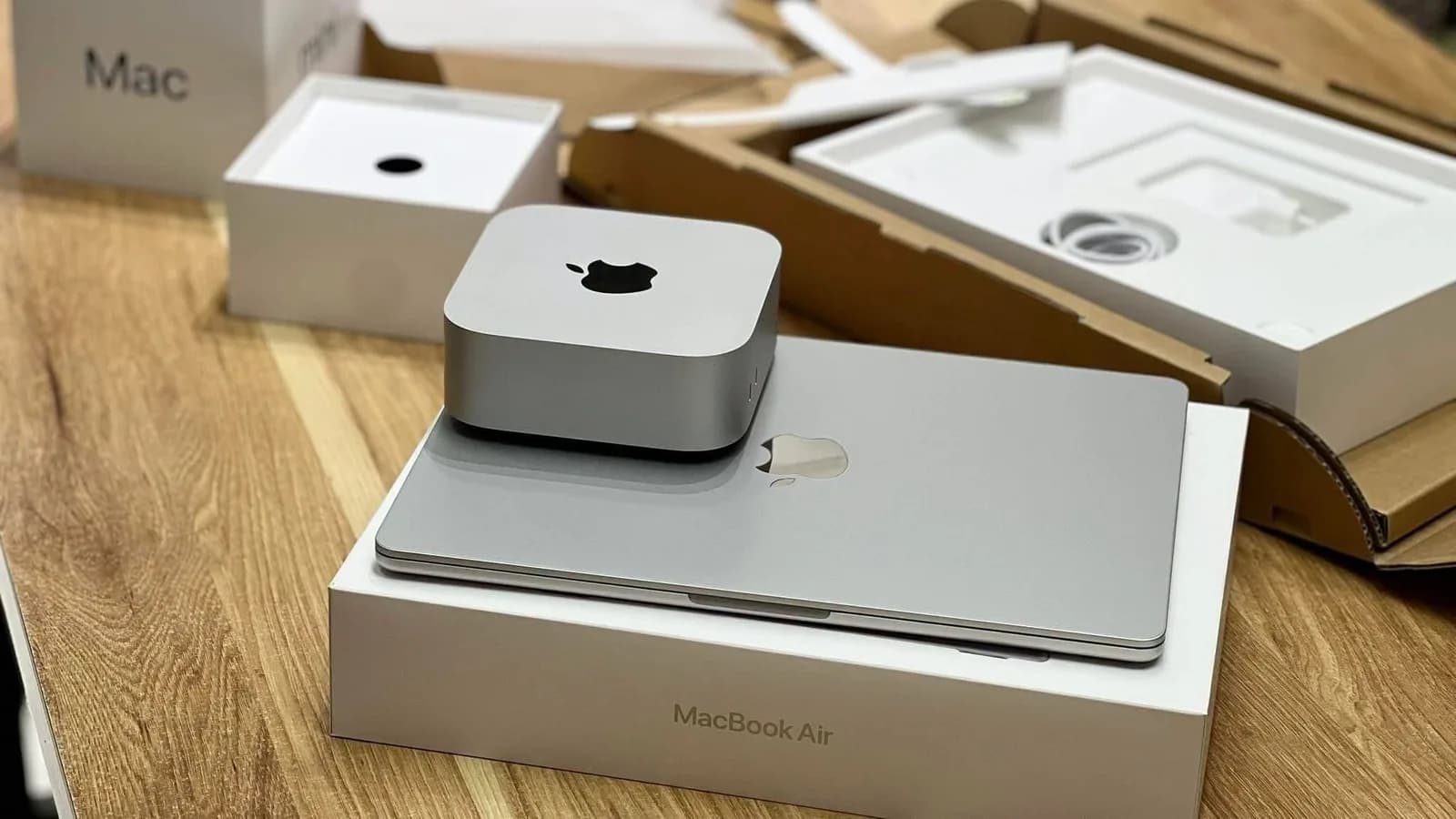
According to Apple’s tech specs, the Mac mini box contains exactly two items: the Mac mini and a 1.8 m power cord. That is true for both the 2024 Mac mini (M4, M4 Pro) and the 2026 Mac mini (M6, M5 Pro). There is no display, keyboard, mouse or video cable.
So before you open the box, have these ready:
- A display with HDMI, USB-C or Thunderbolt input and a matching cable. A TV with HDMI works too.
- A keyboard and a mouse (or trackpad). Wired USB-C models are the easiest for the very first setup.
- A network connection: Wi-Fi or an Ethernet cable.
- Your Apple Account if you have one, and your old Mac or a Time Machine backup drive if you want to transfer data.
Getting to know the ports on a Mac mini
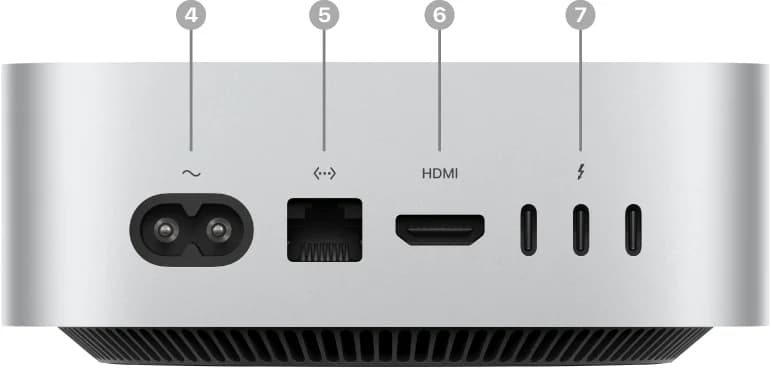
Apple’s "Take a tour of Mac mini" describes the current model like this:
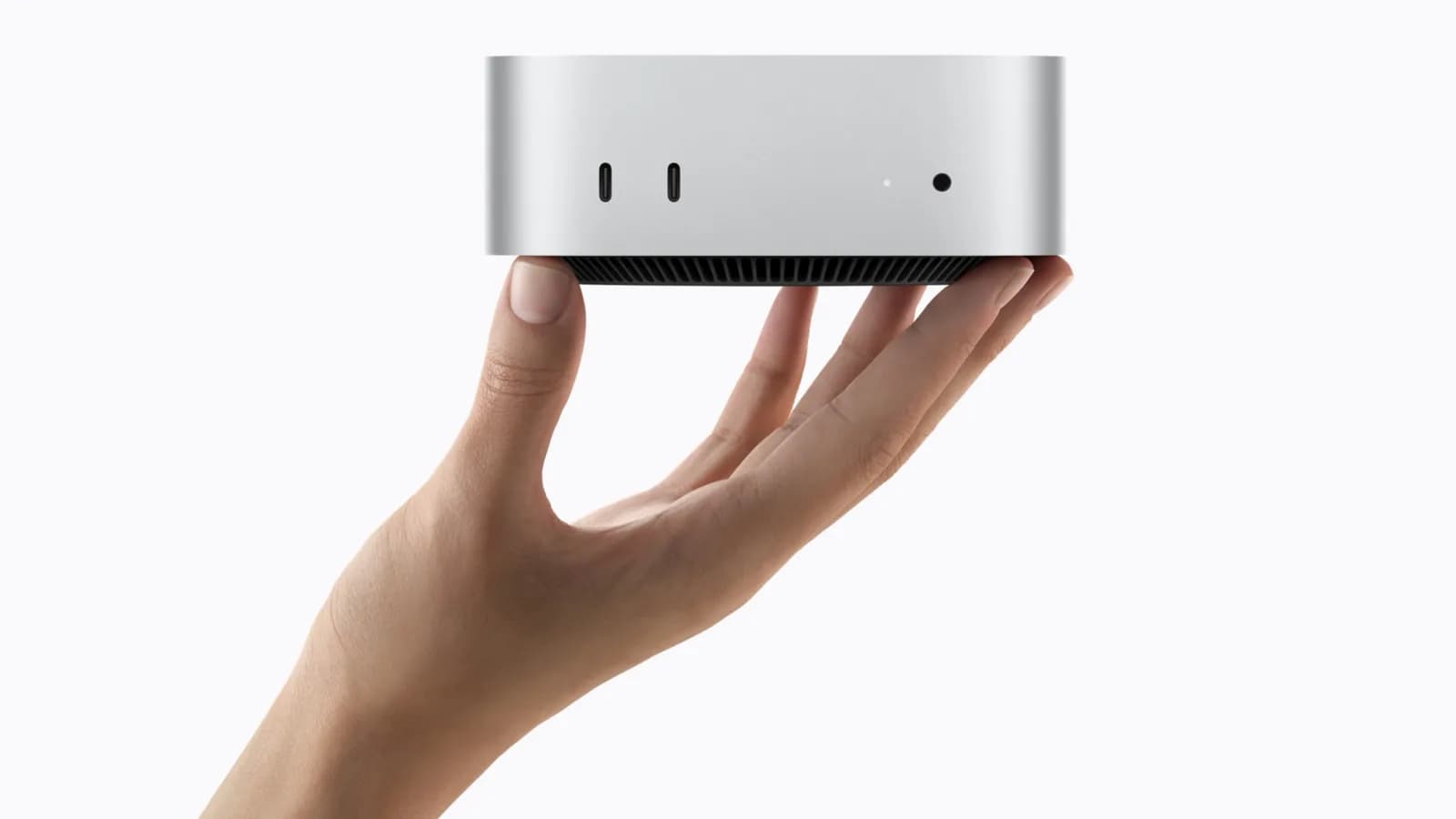
- Front: two USB-C ports, a status indicator light and a 3.5 mm headphone jack.
- Back: power port, Ethernet port, HDMI port and three Thunderbolt (USB-C) ports.
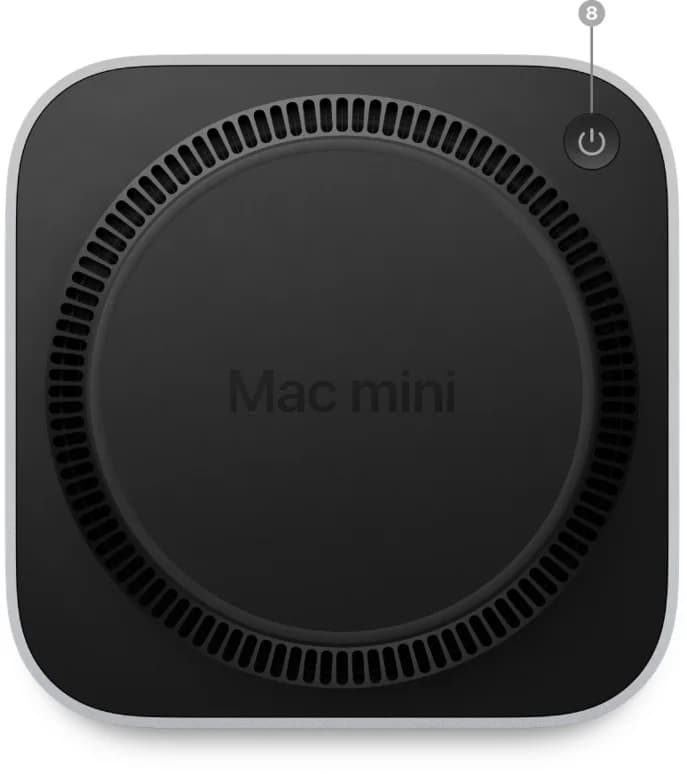
- Bottom: the power button.
Two details are easy to get wrong. First, the two front USB-C ports do not output video, so the display has to go on the back. Second, devices that use only Thunderbolt are not compatible with the front USB-C ports; plug them into a Thunderbolt port on the back. Ordinary USB drives, flash drives and card readers work on either side.
Four cabling steps before you switch it on
Apple recommends a hard, stable surface with room for air to circulate under and around the computer, then this order.
- Connect power. Plug the included power cord into the power port on the back and the other end into an outlet.
- Connect a display. Power the display if it needs it, turn it on, then use the display’s cable to connect it to a Thunderbolt port or the HDMI port on the back of the Mac mini.
- Connect a keyboard and mouse. Use their cables with a USB-C or Thunderbolt port. For a Magic Keyboard, Magic Mouse or Magic Trackpad, plug in the cable and slide the switch so green is visible to pair it; you can then unplug the cable and use it wirelessly.
- Turn it on. Press the power button on the bottom of the Mac mini.
If the display cable does not match a port on the computer, you need an adapter or a different cable. Examples from Apple’s table: an HDMI display uses an HDMI cable; a USB-C display uses a USB-C cable; a DisplayPort display needs a USB-C to DisplayPort adapter.
The Setup Assistant steps
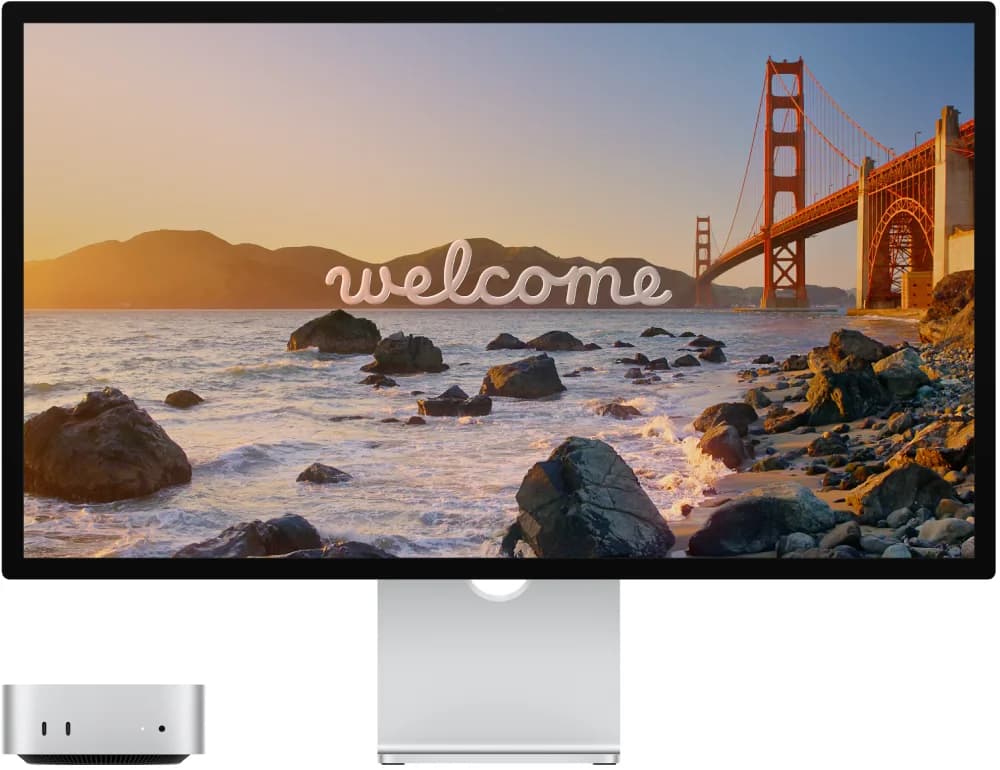
Setup Assistant walks you through the first steps. It starts with choosing a language, then:
- Connect to Wi-Fi. Choose your network and enter the password. On Ethernet, click the other network options and follow the instructions.
- Choose how to set up. Set up as new, set up with an iPhone or iPad, or transfer data from another Mac, a Windows PC, a Time Machine backup or a startup disk.
- Accessibility. Review options for vision, hearing, mobility, speech and cognition, or skip and set them up later.
- Create your computer account. Enter your name and create a password. You use it to unlock the Mac and approve important changes.
- Sign in to your Apple Account. Use the email address or phone number and password from your other Apple devices, or create a new account.
- Finish. Choose settings such as Location Services, Appearance, Apple Intelligence and Siri.
If you have an older Mac, the "how to set up" step is the most convenient moment to move your data. See transferring data to a new Mac with Migration Assistant for details. Apple notes that Apple Intelligence on macOS 27 or later is not available in all languages or regions.
What to do right after setup
When Setup Assistant finishes, the Mac is ready. Three things are worth doing early:
- Turn on a backup. Apple describes two options: iCloud, which syncs photos, files, notes and passwords (it does not back up your entire Mac; accounts start with 5GB), and Time Machine, which backs up the whole Mac to an external drive, another Mac on your network or a NAS device.
- Adjust the display. Open System Settings > Displays to set resolution, brightness and colour profile, and to choose between extending and mirroring when you use several displays.
- Pair Bluetooth accessories. Open System Settings > Bluetooth, select the device in the Nearby Devices list and click Connect.
When connecting several displays, Apple suggests connecting the highest-resolution one first. The maximum depends on the model: the Mac mini M4, M6 and their Pro counterparts support up to three displays; the Mac mini M1 supports up to two.
No Mac mini yet? A few configurations in stock
The steps above apply to the redesigned Mac mini (2024 onwards). On a Mac mini M1 or M2 the Setup Assistant part is identical; only the port positions differ. Below are a few configurations at Mac Minimal; you can also see the machines in person at 109 Trung Phung, Dong Da, Hanoi.
See every Mac mini, or read how to choose memory and storage for a Mac mini before you settle on a configuration.
Frequently asked questions
Does a Mac mini come with a keyboard, mouse and display?
No. According to Apple’s tech specs the box contains only the Mac mini and a 1.8 m power cord. You need your own display, video cable, keyboard and mouse or trackpad.
Where is the power button on a Mac mini?
On the current Mac mini the power button is on the bottom of the computer. Apple also says the Mac mini turns on when connected to power: if it is already plugged in, disconnect it for thirty seconds and reconnect it.
Can I connect a display to the front USB-C ports?
No. The two front USB-C ports on a Mac mini do not support video output. Connect the display to one of the three Thunderbolt ports or the HDMI port on the back.
Can I use a third-party Bluetooth keyboard for the first setup?
The first time you pair a Bluetooth accessory you do it in System Settings > Bluetooth, which means you already need to control the Mac. The safest approach is a wired keyboard and mouse for the first setup, then pair Bluetooth accessories afterwards.
Do I have to sign in with an Apple Account during setup?
Setup Assistant includes an Apple Account sign-in step, and you can create an account there if you do not have one. It is needed for iCloud, the App Store and Find My. The computer account (the name and password for logging in to the Mac) is a separate step that you always complete.
Sources
The pages below were opened and checked while writing this article.
- Set up your Mac mini — Mac mini Getting Started Guide — Apple Support
- Take a tour of Mac mini — Apple Support
- Connect displays to your Mac mini — Apple Support
- Connect accessories to your Mac mini — Apple Support
- Back up and restore your Mac mini — Apple Support
- Mac mini (M6 or M5 Pro) - Tech Specs — Apple Support
- Mac mini (2024) - Tech Specs — Apple Support
- Mac mini (M1, 2020) - Tech Specs — Apple Support
Topics in this article
Mac Minimal — a Mac mini and Mac Studio shop at 109 Trung Phung, Dong Da, Hanoi. Articles are based on Apple’s official documentation, with sources listed at the end.
Related articles
Transferring data to a new Mac with Migration Assistant: a guide for Mac mini
Migration Assistant moves documents, apps, accounts and settings from your old Mac to the new one without deleting anything. A step-by-step walk-through based on Apple’s documentation, with notes for two Mac minis.
Mac mini M6 and M5 Pro: official specs, pricing and what changed from the M4
The 2026 Mac mini comes with M6 or M5 Pro and adds Wi-Fi 7, Bluetooth 6 and 2.5Gb Ethernet. Here are the official specs, Apple’s pricing and how it compares with the Mac mini M4.
How to check a used Mac mini before buying: 6 steps based on Apple’s documentation
Before paying for a pre-owned Mac mini, match the serial number, look it up on Apple’s coverage page, make sure Activation Lock is off, run Apple Diagnostics and try every port.