
How to check a used Mac mini before buying: 6 steps based on Apple’s documentation
When buying a used Mac mini, check in this order: read the model name and serial number in About This Mac, look the serial number up on checkcoverage.apple.com, make sure the Mac has been erased and is free of the previous owner’s Activation Lock, compare chip, memory and storage with the listing, run Apple Diagnostics, then try every port.
 By Mac MinimalPublished Updated 8 min read
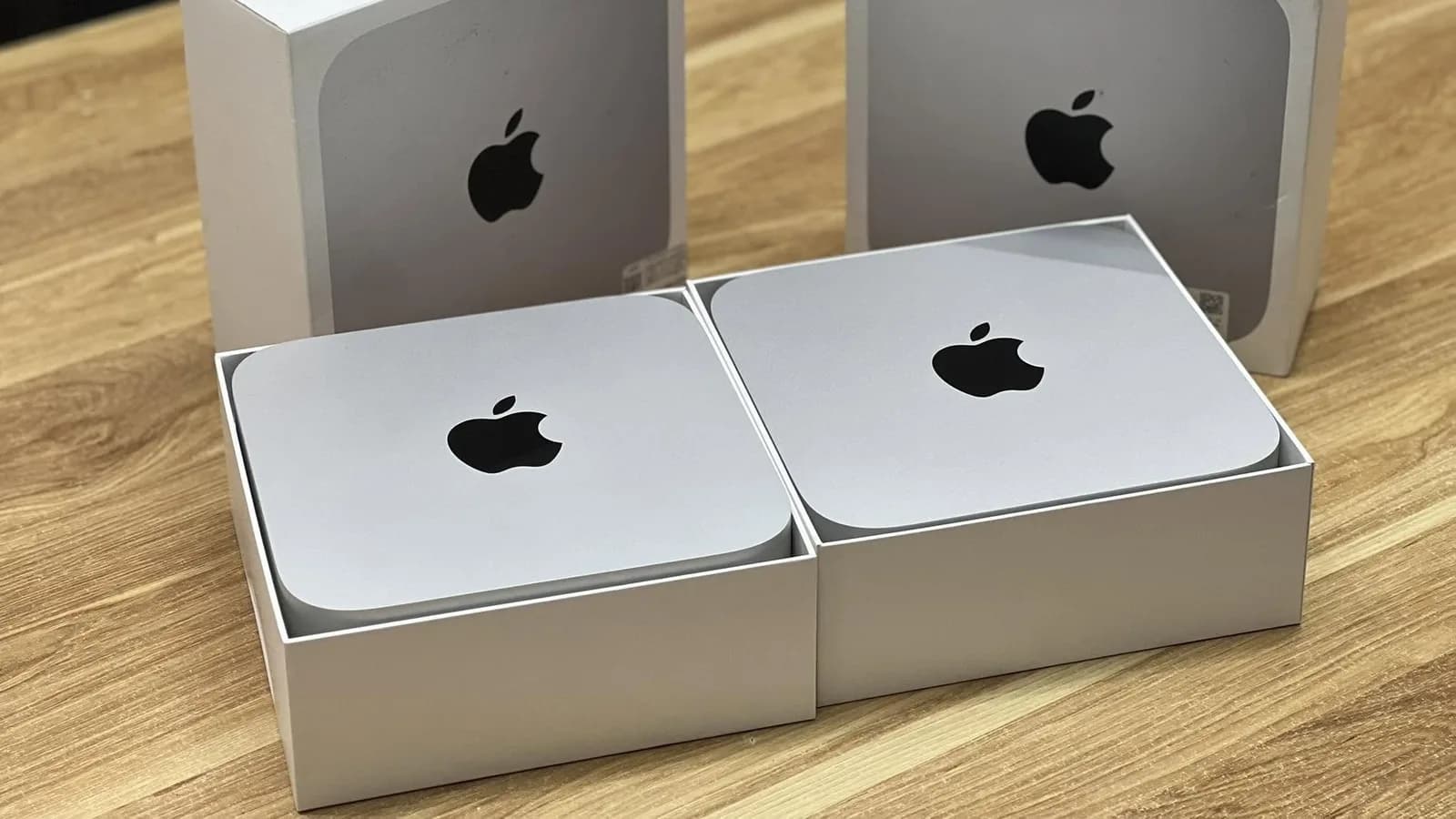
Key takeaways
- The serial number appears in three places: About This Mac, the System Information app and printed on the underside; all three should match.
- Enter the serial number on checkcoverage.apple.com to see the exact model name and its coverage status.
- A properly prepared Mac has been erased and starts at the setup screen. If it asks for someone else’s Apple Account, do not buy it.
- Apple Diagnostics runs on the Mac itself: hold the power button until Options appears, then hold Command-D.
- Try every port: Thunderbolt, USB, HDMI, Ethernet and the headphone jack, plus Wi-Fi and Bluetooth.
Contents
Step 1: Find the model name and serial number
First, know exactly which machine is in front of you. Apple documents several ways to find the model name and serial number; with a used Mac mini it is worth using these three and comparing them.
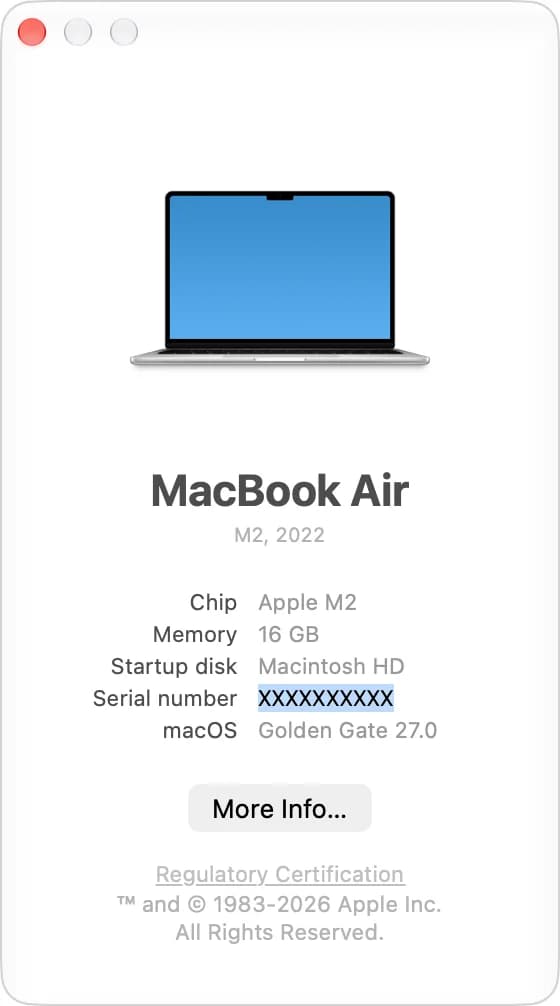
- About This Mac: open the Apple menu in the corner of the screen and choose About This Mac. The window shows the model name, chip, memory, startup disk, serial number and macOS version.
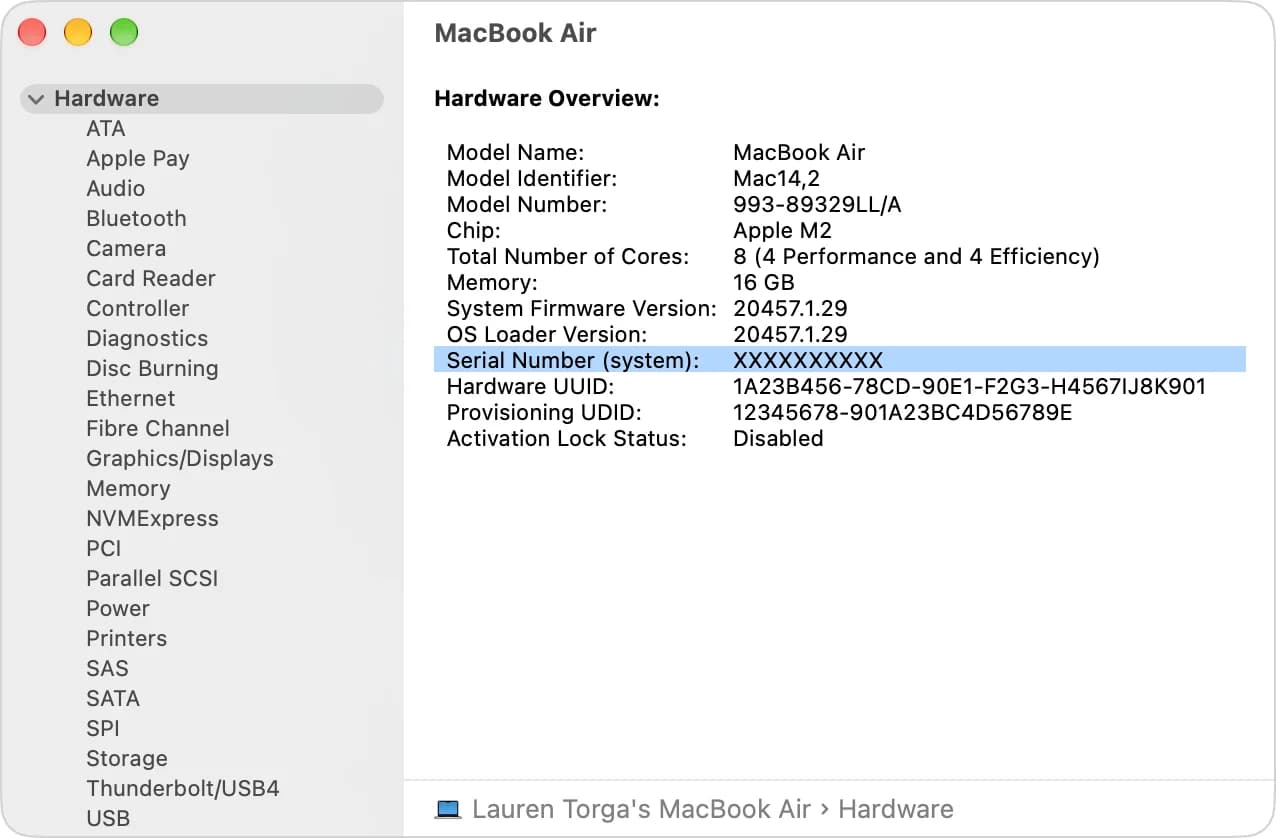
- System Information: hold the Option key while choosing Apple menu > System Information, then select Hardware. It lists the serial number, Model Identifier and Model Number.
- Printed on the Mac: a serial number is usually printed on the underside near the regulatory markings, and may appear on the original box next to a barcode.
Step 2: Look the serial number up with Apple
Open checkcoverage.apple.com, enter the serial number and the CAPTCHA, and submit. The page shows the device’s warranty and AppleCare coverage. Apple also points to this page as the way to get the specific model name from a serial number.
Compare the model name it returns with the listing. To be even more certain, match the Model Identifier from System Information against Apple’s "Identify your Mac mini model" table:
| Model | Year introduced | Model Identifier |
|---|---|---|
| Mac mini (M6) | 2026 | Mac18,5 |
| Mac mini (M5 Pro) | 2026 | Mac17,16 |
| Mac mini (2024) — M4, M4 Pro | 2024 | Mac16,10; Mac16,11 |
| Mac mini (2023) — M2 | 2023 | Mac14,3 |
| Mac mini (2023) — M2 Pro | 2023 | Mac14,12 |
| Mac mini (M1, 2020) | 2020 | Macmini9,1 |
Model identifiers of Mac mini generations with Apple silicon
According to the same table, every Mac mini generation listed above is compatible with macOS 27 Golden Gate, the newest macOS today. The Mac mini (2018), by contrast, stops at macOS Sequoia.
Step 3: Make sure Activation Lock is off
This is the most important step. Activation Lock is enabled when the owner turns on Find My. According to Apple, with Activation Lock on, the owner’s Apple Account password or device passcode is required before anyone can turn off Find My, erase the Mac, or reactivate and use it. Even after a remote erase, the lock can keep others from reactivating the Mac.
A simple way to check when you receive the machine:
- The Mac has been erased: when you turn it on it should show the "Hello" screen and Setup Assistant, like a new Mac. That is the state Apple describes after Erase All Content and Settings, which also turns off Find My and Activation Lock.
- The Mac still has the previous owner’s account: ask the seller to go to System Settings > General > Transfer or Reset > Erase All Content and Settings in front of you, then run through setup yourself.
- The Mac asks for someone else’s Apple Account during activation: stop the deal. Only that account’s owner can remove the lock, by turning off Find My on the Mac or removing it at iCloud.com/find.
Step 4: Compare the real configuration with the listing
After the trial setup, open About This Mac again and compare each line with the listing: the chip (Apple M2 or M2 Pro, for example), the memory (8GB, 16GB, 24GB and so on), and the storage size in System Settings > General > Storage. Memory and storage on a Mac mini are configurations chosen at purchase, so being one tier off the listing is a real difference in value.
Not sure which memory tier suits you? Read 16GB vs 24GB for the Mac mini before you go to see a machine.
Step 5: Run Apple Diagnostics
Apple Diagnostics is the built-in hardware test that helps determine which component might be at fault. Before running it, shut the Mac down and disconnect all external devices except the keyboard, mouse, display, Ethernet (if used) and power; place the Mac on a hard, flat, well-ventilated surface.
- Press and hold the power button. The Mac turns on and loads startup options.
- When you see Options, release the power button.
- Press and hold Command (⌘)-D until the Mac restarts into Apple Diagnostics.
- Follow the onscreen instructions. If offered, you can choose Run Offline.
These steps are for Apple silicon, which covers every Mac mini from M1 onwards. When testing is complete the tool shows the results, with reference codes if it finds a problem; Apple publishes a list explaining each code. In macOS Tahoe 26 and later you choose a specific diagnostic to run instead of an automatic full run.
Step 6: Try every port and the wireless connections
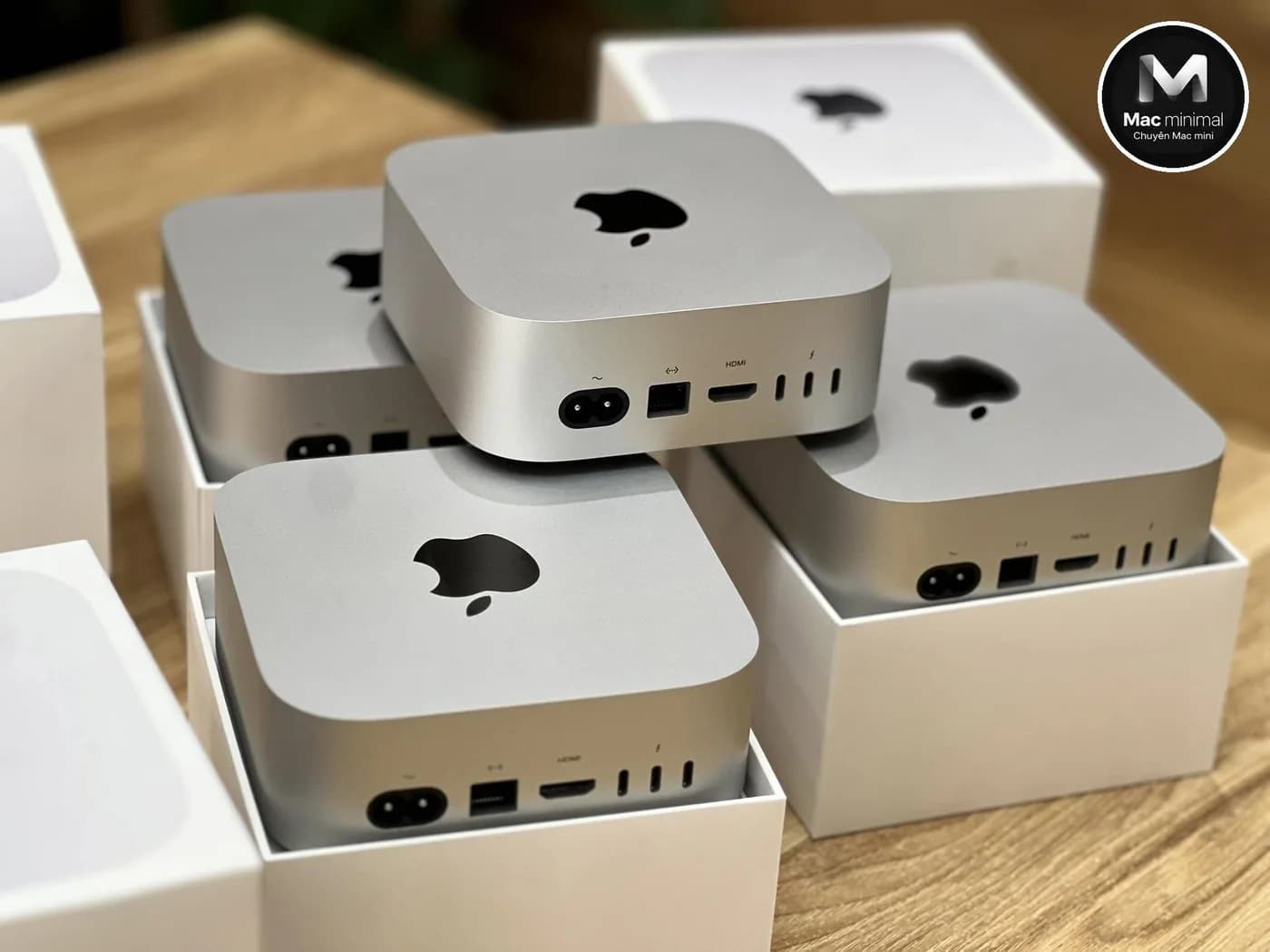
Bring a USB-C flash drive or external disk, wired headphones and, if you can, an HDMI cable. The ports differ by generation, according to Apple’s tech specs:
| Generation | Thunderbolt ports | Other USB ports | Other ports |
|---|---|---|---|
| M1 (2020) | 2 on the back | 2 USB-A | HDMI, Ethernet, 3.5 mm jack |
| M2 (2023) | 2 on the back | 2 USB-A | HDMI, Ethernet, 3.5 mm jack |
| M2 Pro (2023) | 4 on the back | 2 USB-A | HDMI, Ethernet, 3.5 mm jack |
| M4, M4 Pro (2024) | 3 on the back | 2 USB-C on the front | HDMI, Ethernet, 3.5 mm jack on the front |
| M6, M5 Pro (2026) | 3 on the back | 2 USB-C on the front | HDMI, Ethernet, 3.5 mm jack on the front |
Ports to test by Mac mini generation
- Plug the external drive into each port in turn, check that it mounts and copy a test file.
- Output video over HDMI and over at least one Thunderbolt port.
- Plug in headphones and play audio; try the built-in speaker too.
- Join Wi-Fi, pair a Bluetooth device, and try an Ethernet cable if one is available.
- Let the Mac run for a few minutes, listen for unusual noise and watch for unexpected shutdowns or restarts.
Seeing pre-owned machines at Mac Minimal
These six steps apply wherever you buy, Mac Minimal included. The shop carries new, like-new and pre-owned Mac minis, and you can see and check a machine in person at 109 Trung Phung, Dong Da, Hanoi. Warranty and returns depend on each product, so ask the shop before ordering.
Browse every Mac mini in stock. Once you have yours, follow our guide to setting up a Mac mini for the first time.
Frequently asked questions
Where do I find the serial number of a Mac mini?
Choose Apple menu > About This Mac to see the serial number, look under Hardware in System Information, or read the number printed on the underside. Then enter it on checkcoverage.apple.com to see the model name and coverage status.
How can I tell whether a used Mac mini has Activation Lock?
Ask the seller to erase it with Erase All Content and Settings, then set it up yourself. If activation asks for another person’s Apple Account and password, the Mac is still locked, and only that account’s owner can remove the lock.
How do I run Apple Diagnostics on a Mac mini?
Shut the Mac down, press and hold the power button until Options appears and release it, then press and hold Command-D until the Mac restarts. Follow the onscreen instructions; if there is a problem the tool shows a reference code.
Is it a problem if the serial number on the underside differs from About This Mac?
According to Apple, if the logic board was replaced during a repair, the number printed on the Mac or its box might no longer be active, and the current number is the one in About This Mac. Ask about the repair history and use the software number for the coverage check.
Does an old Mac mini M1 still get new macOS versions?
According to Apple’s "Identify your Mac mini model" table at the time of writing, the Mac mini (M1, 2020) is compatible with macOS 27 Golden Gate, the same newest macOS supported by the M2, M4 and M6 generations.
Sources
The pages below were opened and checked while writing this article.
- Find your Mac model name and serial number — Apple Support
- View device coverage and benefits (Check Coverage) — Apple
- Identify your Mac mini model — Apple Support
- Activation Lock for Mac — Apple Support
- Erase your Mac — Mac User Guide — Apple Support
- Use Apple Diagnostics to test your Mac — Apple Support
- Mac mini (2023) - Tech Specs — Apple Support
- Mac mini (M1, 2020) - Tech Specs — Apple Support
- Mac mini (2024) - Tech Specs — Apple Support
- Mac mini (M6 or M5 Pro) - Tech Specs — Apple Support
Topics in this article
Mac Minimal — a Mac mini and Mac Studio shop at 109 Trung Phung, Dong Da, Hanoi. Articles are based on Apple’s official documentation, with sources listed at the end.
Related articles
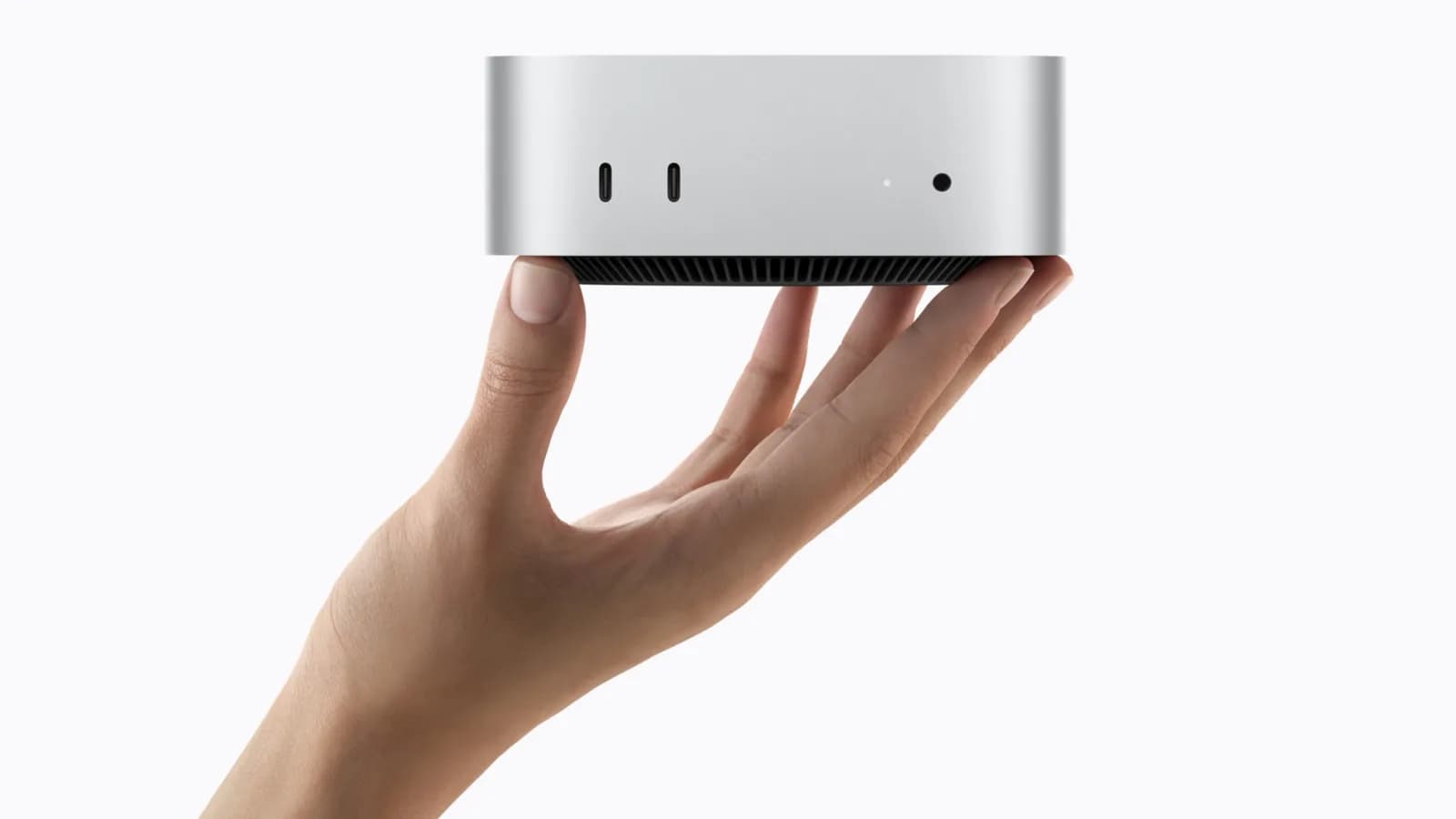
Mac mini M6 and M5 Pro: official specs, pricing and what changed from the M4
The 2026 Mac mini comes with M6 or M5 Pro and adds Wi-Fi 7, Bluetooth 6 and 2.5Gb Ethernet. Here are the official specs, Apple’s pricing and how it compares with the Mac mini M4.
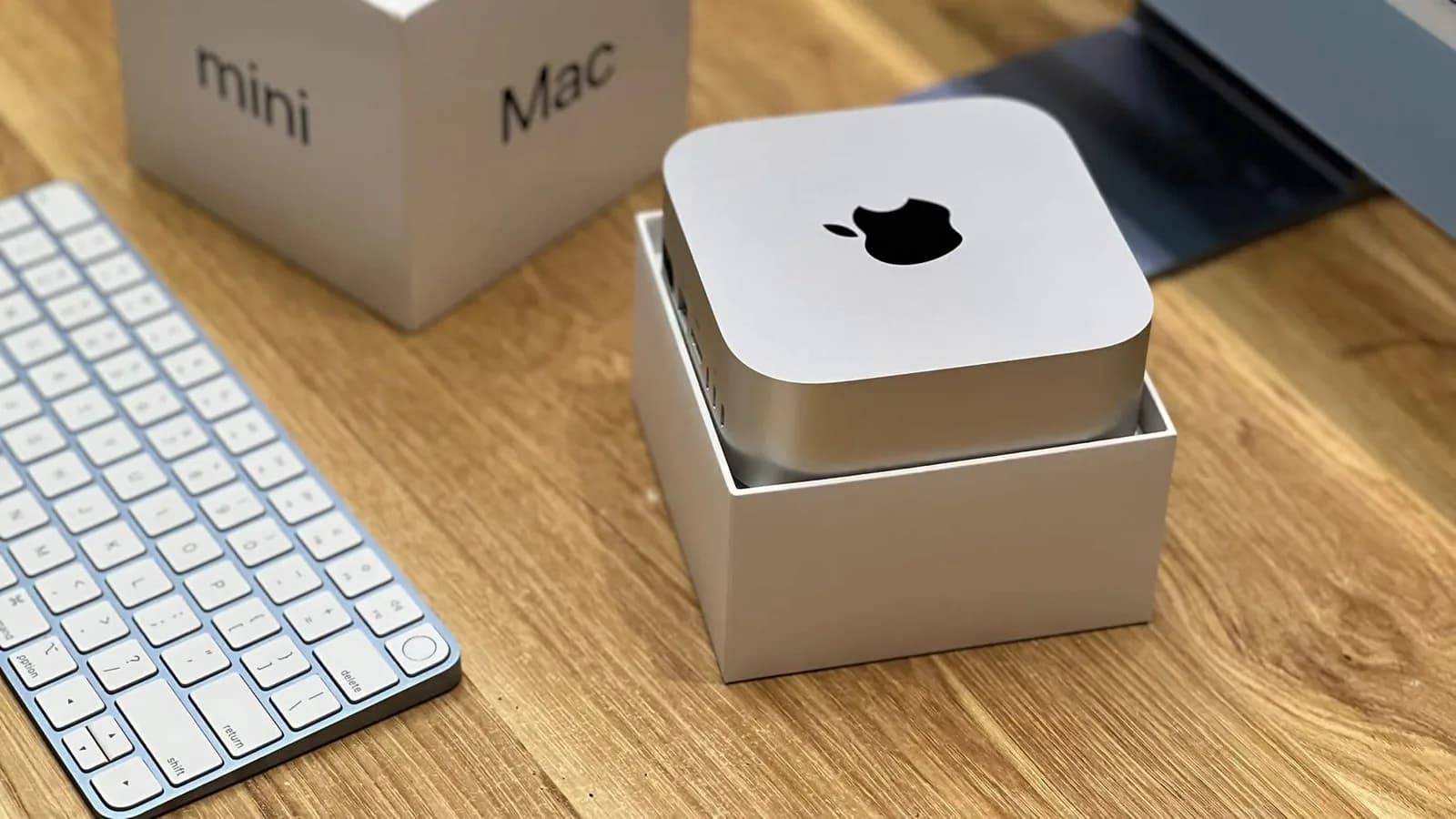
Setting up a Mac mini for the first time: what you need and the order to follow
A Mac mini ships with a power cord and nothing else, so have a display, keyboard and mouse ready. Here is the cabling order, where the power button is and each Setup Assistant step, following Apple’s official guide.
Mac mini 16GB or 24GB? How to choose memory and storage for what you do
Memory and storage on a Mac mini are chosen at purchase, so getting them right matters. Here are the tiers Apple offers for each generation and how to use Activity Monitor to find out how much you need.